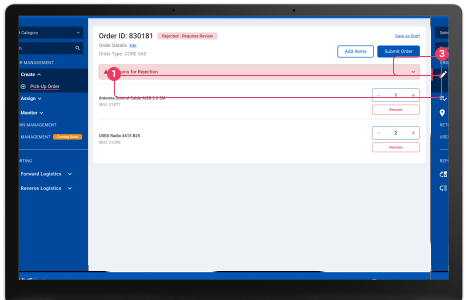
Rejected Order
PMs have the ability to manage and review rejected orders that have been submitted.
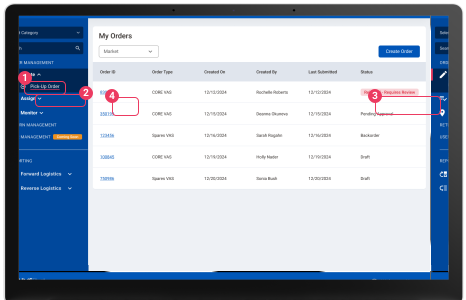
Navigate to My Orders
- Expand the ‘Create’ category
- Click on ‘Pick-Up Order’ from the navigation on the left hand side of the screen.
- Orders that have been rejected will display a ‘Rejected - Requires Review’ status indicator.
- Select a ‘Order ID’ to review the order details.
Editing a Rejected Order
After selecting the ‘Create Order’ button a pop-up will display to select how you would like to
create your order.
- Select ‘Create a New Order’ to create a brand new order from scratch.
- Select the ‘Continue’ button to begin the order creation process.
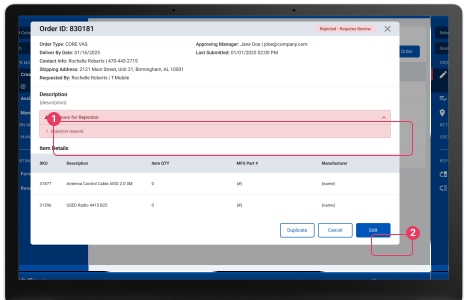
Resubmitting Your Order
When editing and resubmitting a rejected order, the workflow is the same as editing an order normally.
- Select the ‘Reasons for Rejection’ dropdown arrow to see the note from the Approver.
- Make corrections to the order based on the reasons for rejection.
- Once you have made corrections to your order, select the ‘Submit Order’ button.