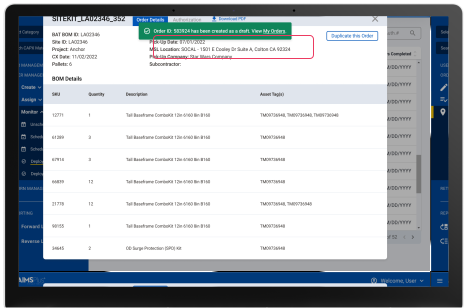
Duplicate Order
PMs have the ability to duplicate an order — whether it’s a draft, existing, or deployed order.
- There are three ways to duplicate an order:
- Order Lookup – Search for and select an order to duplicate.
- Existing Order – Choose an order directly from your order list.
- Deployed CAPX Material – Duplicate from a previously deployed order.
Duplicating an Order
- Select the ‘Create Order’ button to start the order creation process.
- Select ‘Create a New Order from an Existing Order’ to create a order from an order that is in draft status, was previously created, or has already been deployed.
- Select the ‘Continue’ button to begin the order creation process.
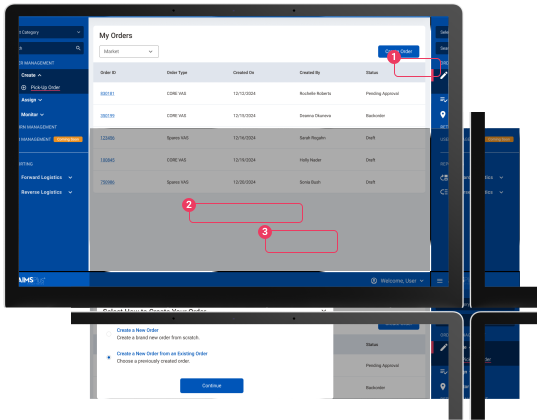
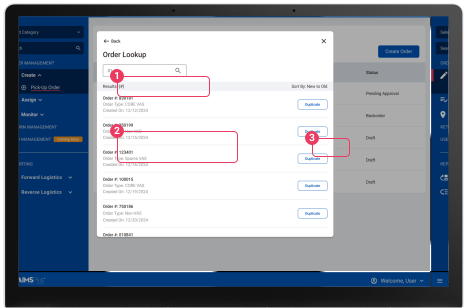
Duplicating an Order - Order Lookup
After selecting the ‘Create Order’ button a pop-up will display to select how you would like to
create your order.
- Input the Order Number in the search bar.
- Each order will include the following information:
- Order Number
- Order Type
- Creation Date
- Select the ‘Duplicate’ button to duplicate the preferred order.
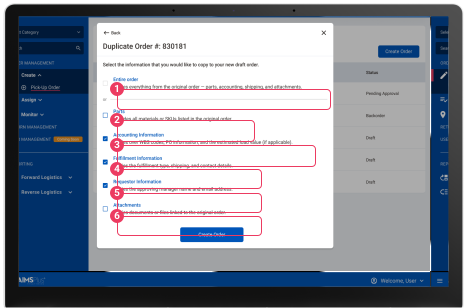
Duplicating an Order
Once you have selected the order you would like to duplicate, you will have the ability to select information from that existing order. that you would like to include in your new order. Information
- The information that can be copied to the new order includes the following:
- Entire Order - copies everything from the original order.
- Parts - includes all material in the original order.
- Accounting Information
- Fulfillment Information
- Requestor Information
- Attachments
- Select the ‘Create Order’ button to create the order.
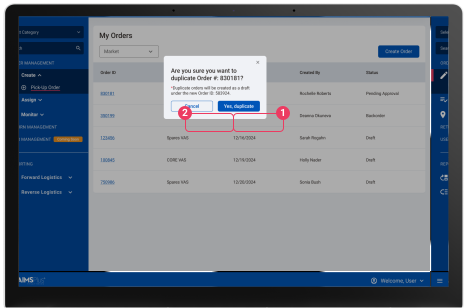
Confirm to Duplicate the Order
After selecting the information that will be copied over to the new order, confirm that you would like to create a new order from the existing order.
- Select the ‘Yes, duplicate’ button to create a new order from the existing order.
- If you would like to go back to the cart, select the ‘Cancel’ button.
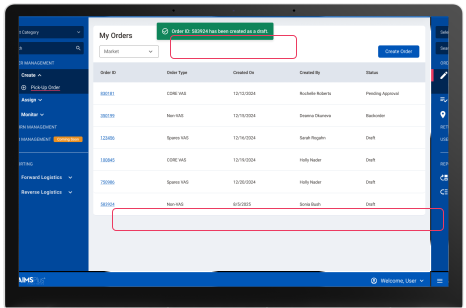
Order Duplicated
After duplicating an order, you will be taken back to the ‘My Orders’ home page. A toast message will appear to show that the order has been duplicated. The new order will now appear as a draft in the ‘My Orders’ table.
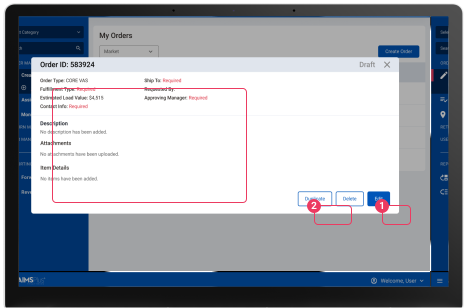
Duplicating an Order - Order Details
The order details for a duplicated order will display the information selected when creating a duplicate order. Information will not be populated within the details view if it was not selected while creating a duplicate order. For example, in the order below only the accounting information was copied from the existing order meaning there is required information that must be provided in order to submit the order.
- To edit the newly created order, select the ‘Edit’ button. This will take you to the order’s cart.
- Orders can also be duplicated from the details page by selecting the ‘Duplicate’ button. This will take you through the duplication process.
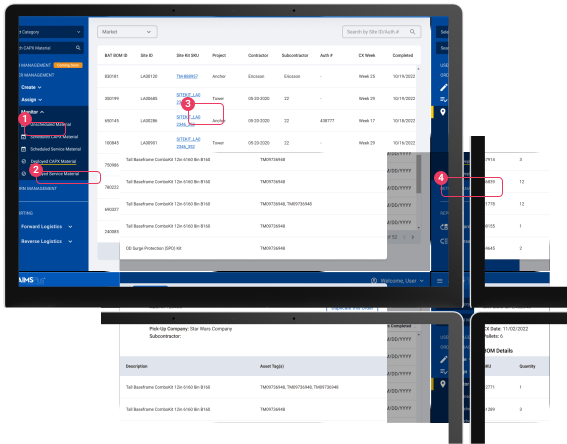
Duplicating an Order - Deployed Material
Create a duplicate order from material that has been deployed.
- Expand the ‘Monitor’ category
- Click on ‘Deployed CAPX Material’ from the navigation on the left hand side of the screen.
- Orders can also be duplicated from the details page by selecting the ‘Duplicate this Order’ button. This will take you through the duplication process.
- Click on ‘Deployed CAPX Material’ from the navigation on the left hand side of the screen.
Order Duplicated
After duplicating an order, you will be taken back to the ‘Deployed CAPX Material’ order details page. A message will appear to show that the order has been duplicated. The new order will now appear as a draft in the ‘My Orders’ table.