Create New Order
PMs have the ability to create and manage orders that have been submitted and awaiting manager approval.
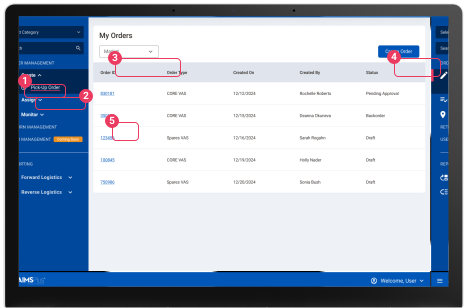
Navigate to Create Pick-Up Order
- Expand the ‘Create’ category.
- Click on 'Pick-Up Order' from the navigation on the left hand side of the screen.
- Select the dropdown to switch between markets.
- Select the ‘Create Order’ button to start the order creation process.
- Select a ‘Order ID’ to view the order details.
Creating a New Order
After selecting the ‘Create Order’ button a pop-up will display to select how you would like to
create your order.
- Select ‘Create a New Order’ to create a brand new order from scratch.
- Select the ‘Continue’ button to begin the order creation process.
Creating a New Order
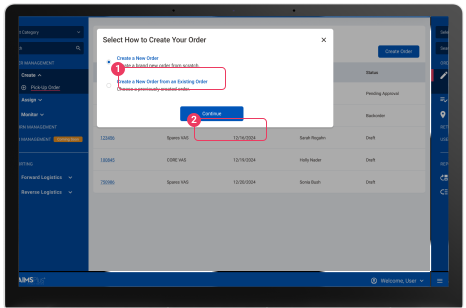
After selecting the ‘Create Order’ button a pop-up will display to select how you would like to
create your order.
- Select ‘Create a New Order’ to create a brand new order from scratch.
- Select the ‘Continue’ button to begin the order creation process.
Creating a Pick-Up Order - Step 1: Order Details
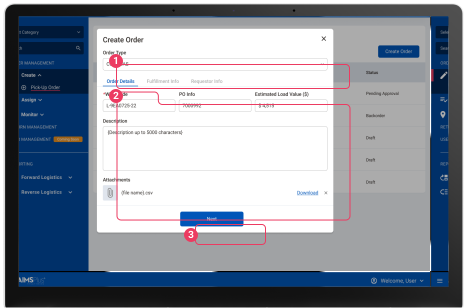
To create a new order fill out the required fields.
- Select an order type (based on the order type selected, different fields will display).
- Fill out the order details (description & attachments will only show on VAS orders):
- WBS Code
- PO Info (only for non-SKU material)
- Estimated Load Value (only for non-SKU material)
- Description (any notes the requestor wants to provide to the VAS team)
- Attachments (any attachments required for VAS work)
- Once all the required fields have been filled out, select the ‘Next’ button to move on to the next step.
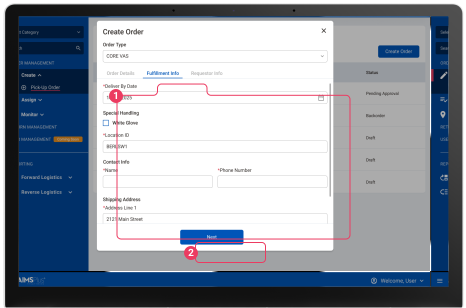
Creating a Pick-Up Order - Step 2: Fulfillment Info
After filling out the order details you will be brought to the fulfillment info step.
- Fill out the order fulfillment information:
- Deliver By Date
- Special Handling (if applicable)
- Location ID
- Address Line 1
- Address Line 2 (if applicable)
- City
- State
- Zip Code
- Delivery Instructions (if applicable)
- Once all the required fields have been filled out, select the ‘Next’ button to move on to the next step.
Creating a Pick-Up Order - Step 3: Requestor Info
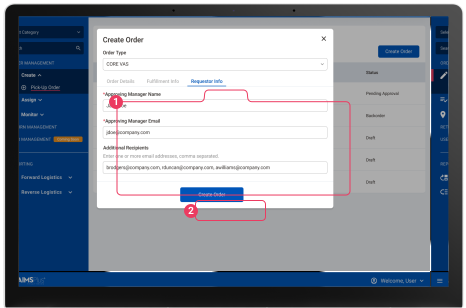
After filling out the fulfillment information you will be brought to the requestor info step.
- Fill out the requestor information:
- Approving Manager Name
- Approving Manager Email
- Additional Recipients (if applicable)
- Once all the required fields have been filled out, select the ‘Create Order’ button to create an order.
Understanding the Cart
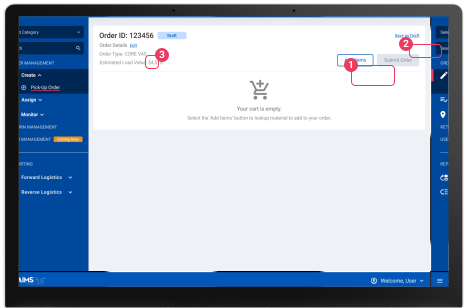
After filling out the required order information your order will be created and saved as a draft. You will now have the ability to add items to your order.
- Select the ‘Add Items’ button to look up material to add to your order.
- Save the order as a draft by selecting the ‘Save as Draft’ button. Saving as a draft will take you back to the ‘My Orders’ home page.
- Edit the order details by selecting the ‘Edit’ button.
Adding Items to the Order
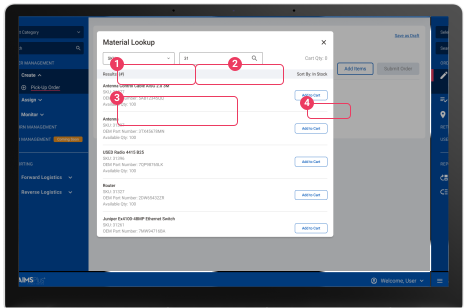
- Select a category to narrow your search by. Searchable categories include the following:
- SKU
- OEM/MFGR Part Number
- Part Description
- After selecting a search category, input the search text.
- Select the an item to see the item details. Each item will include the following information:
- Item Description
- SKU
- OEM
- Item Quantity
- Select the ‘Add to Cart’ button to add an item to your order.
Cart Overview
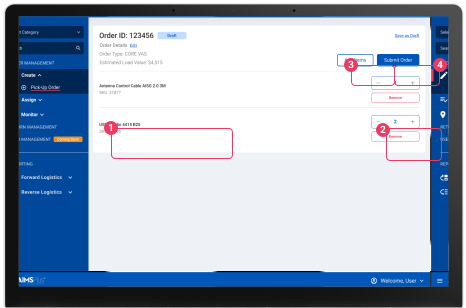
- Once an item has been added to an order, the added item(s) will display in the cart.
- Edit the item quantity by selecting the minus or add buttons. You can also type the preferred quantity using the text box. Remove the item from your cart by selecting the ‘Remove’ button.
- Select the ‘Add Item(s)’ button to add more items to your cart.
- Once you have added the desired items to your order and are ready to submit the order, select the ‘Submit Order’ button.
Cart Overview
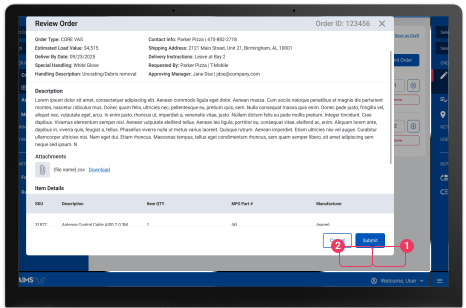
Upon submission, you will need to review the order to ensure that all the information is correct.
- Once you are ready to submit the order, select the ‘Submit Order’ button.
- If you would like to go back to the cart, select the ‘Cancel’ button.
Order Submitted
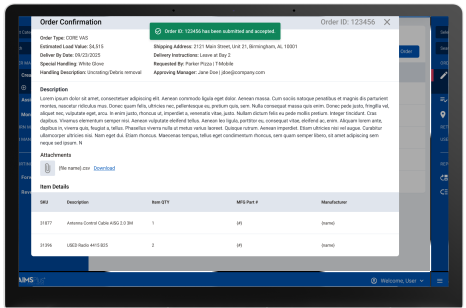
After submitting an order, an Order Confirmation pop-up will appear to confirm your submission.
Submitted orders cannot be modified or deleted. To make changes, a help desk ticket must be submitted. If the order is a draft or backordered, you will have the option to edit or cancel the order.
A message will appear to show that an order has been submitted.
Viewing Order Details
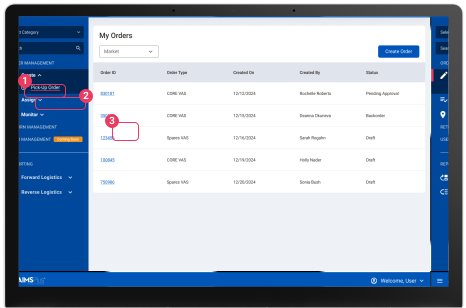
- Expand the ‘Create’ category
- Click on 'Pick-Up Order' from the navigation on the left hand side of the screen.
- Select a ‘Order ID’ to view the order details.
Order Details
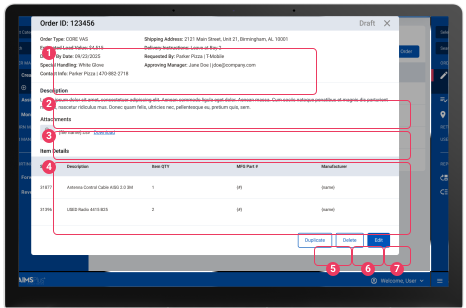
Order details include the order information summary at the top, followed by a digital view of the order. Orders can only be edited or deleted if the order is in draft or backorder status, otherwise the order can only be duplicated.
- Details include:
- Estimated Load Value
- OEM/MFGR Part Number
- Deliver By Date
- Special Handling
- Contact Info
- Shipping Address
- Delivery Instructions
- Requested By
- Approving Manager
- Description
- Attachments
- Item Details
- Select the ‘Duplicate’ button to duplicate the order. An order can only be duplicated after it has been created or submitted.
- Select the ‘Delete’ button to delete the order. An order can only be deleted prior to submission.
- Select the ‘Edit’ button to edit the existing order information. An order can only be edited prior to submission.